

Tie-Up
Source file: context-tie-up.htm
The Tie-Up context sensitive ribbon tab contains tools specifically related to tie-ups.

| Tool | Location on the ribbon | Operation |
|---|---|---|
|
|
Tie up context sensitive ribbon tab > Edit group >View Tie-up Sheet or Design Tie-up Sheet |
For information on designing a tie-up sheet, see Design Tie-up Sheet. |
 Clone Clone |
Tie up context sensitive ribbon tab > Edit group > Clone |
To clone a tie-up, follow these steps:
|
 Validate Validate |
Tie up context sensitive ribbon tab > Publish group > Validate |
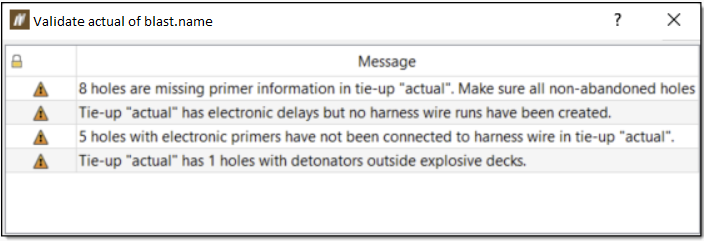
To validate a tie-up, follow these steps:
|
 Publish Publish |
Tie up context sensitive ribbon tab > Publish group > Publish |
For information on publishing a tie-up, see Publishing a tie-up. |
 Delete From Server Delete From Server |
Tie up context sensitive ribbon tab > Publish group > Delete from Server |
To delete a tie-up from the Server, follow these steps:
|
 Export Tie-up Sheet to PDF Export Tie-up Sheet to PDF |
Tie up context sensitive ribbon tab > Export group > Export Tie-up Sheet to PDF |
To export a tie-up sheet to a PDF, follow these steps:
|
 Export Electronic Data Export Electronic Data |
Tie up context sensitive ribbon tab > Export group > Export Electronic Data |
For information on exporting electronic data, see Exporting electronic data. |
 Timing Envelope Timing Envelope |
Tie up context sensitive ribbon tab > Model group > Timing Envelope |
For information on generating a timing envelope diagram, see Timing Envelope. |
 Timing Contour Timing Contour |
Tie up context sensitive ribbon tab > Model group > Timing Contour |
For information on generating a timing contour diagram, see Timing Contour. |
 Burden Relief Surface Burden Relief Surface |
Tie up context sensitive ribbon tab > Model group > Burden Relief Surface |
For information on generating a burden relief surface diagram, see Burden Relief Surface. |
 First Movement Diagram First Movement Diagram |
Tie up context sensitive ribbon tab > Model group > First Movement Diagram |
For information on generating a first movement diagram, see First Movement Diagram. |
 Animate Tie-up Animate Tie-up |
Tie up context sensitive ribbon tab > Model group > Animate Tie-up |
For information on animating a tie-up , see Animate Tie-up. |
 Fragmentation Fragmentation |
Tie up context sensitive ribbon tab > Model group > Fragmentation |
For information on modelling fragmentation, see Fragmentation Modelling. |
 Vibration Vibration |
Tie up context sensitive ribbon tab > Model group > Vibration |
For information on modelling vibration, see Vibration Modelling. |
 Overpressure Overpressure |
Tie up context sensitive ribbon tab > Model group > Overpressure |
For information on modelling the overpressure, see Overpressure Modelling. |
 Bill of Materials Bill of Materials |
Tie up context sensitive ribbon tab > Report group > Bill of Materials |
Open the Bill of Materials report in a new view window. This report contains a table of the quantities and symbols of the blast products used in the tie-up.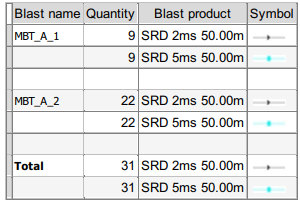 |
 View Tie-up Sheet
  Design Tie-up Sheet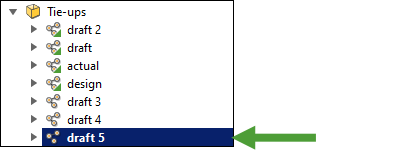
 and selecting the desired location from the file explorer.